|
Configure Client
2010/11/07 |
| Configure for your Mail Client on your PC. This example shows with Windows Live Mail. |
|
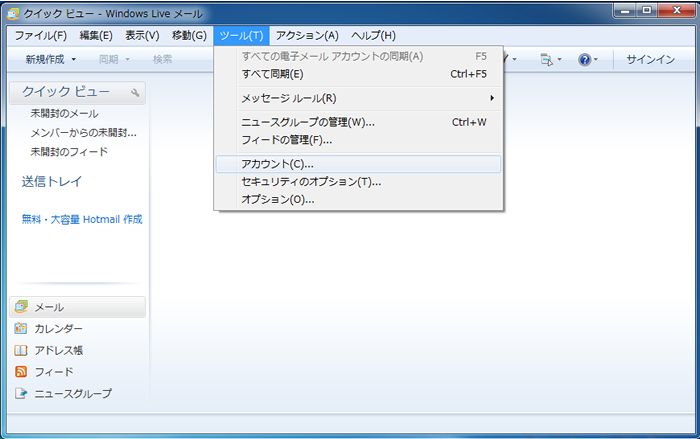
| [1] | Start Windows Live Mail and select 'Tools' - 'Account'. |
|
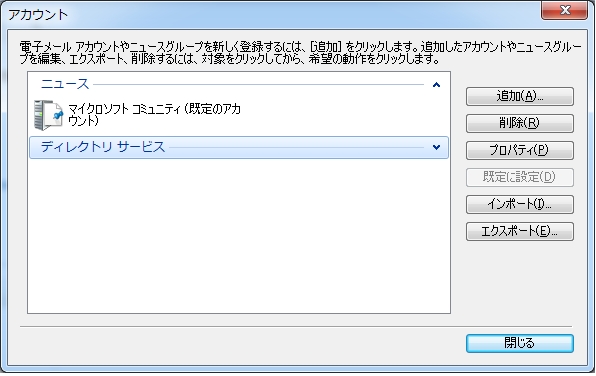
| [2] | Click 'Add' button on the right. |
|
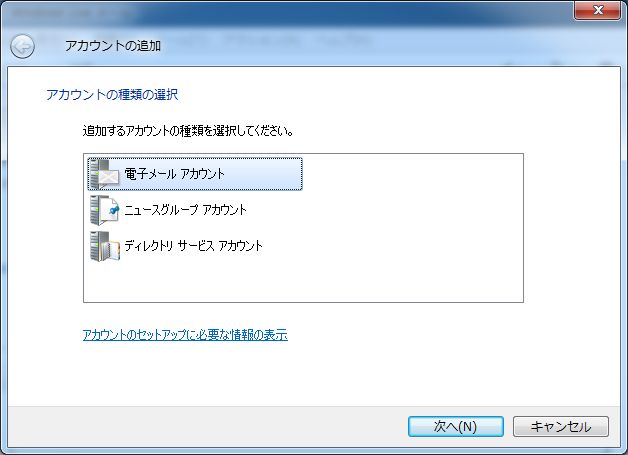
| [3] | Select 'Mail Account' and go next. |
|
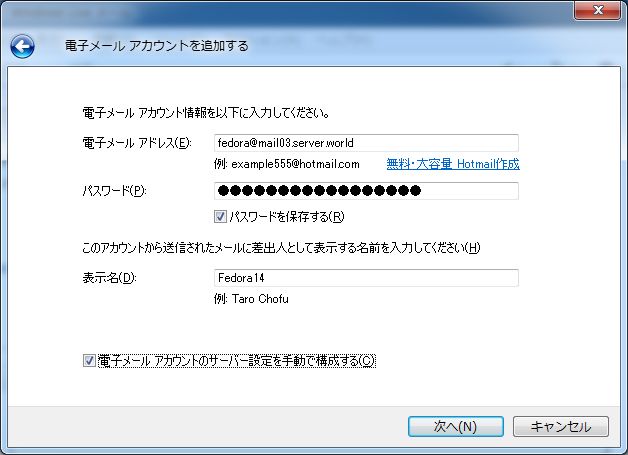
| [4] | Input email address, account's password, sender's name and check a box 'Configure Manually' and go next. |
|
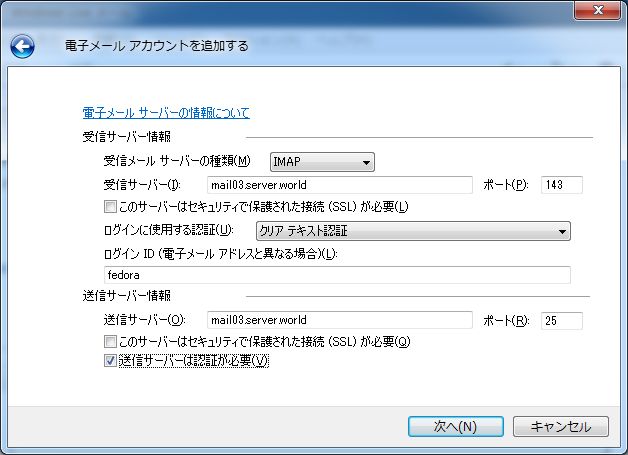
| [5] | Select IMAP or POP. This example selects IMAP. And input other information of your Mail server. Don't forget to check a box 'this server requires to authenticate' at the bottom. |
|
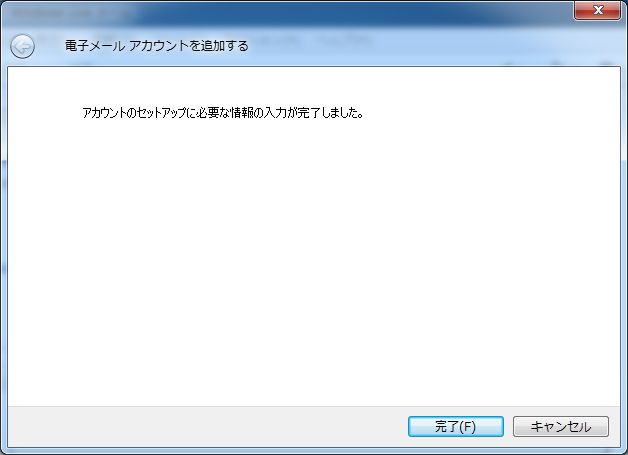
| [6] | Click 'Finish'. |
|
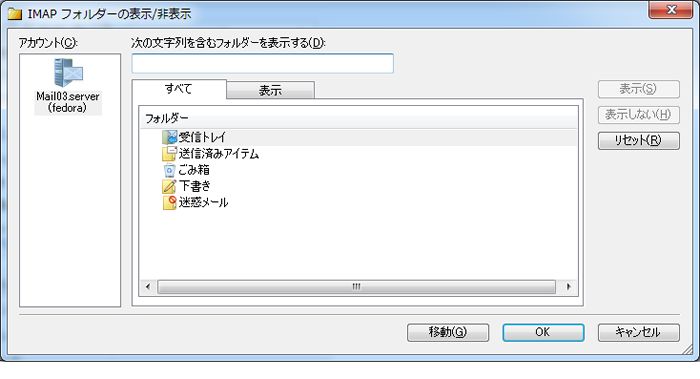
| [7] | Connect and get server's folder settings automatically. |
|
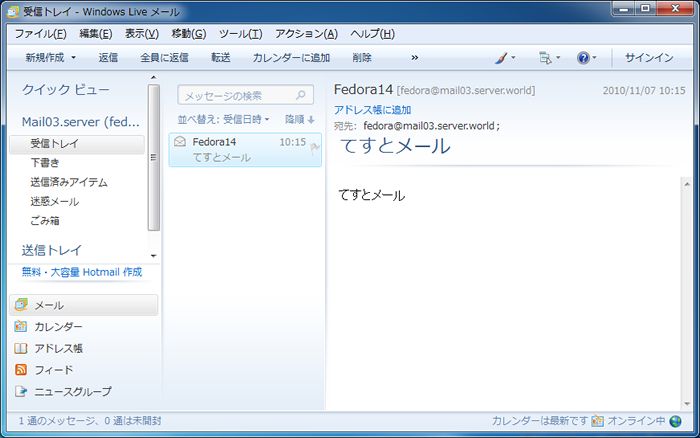
| [8] | Complete. Make sure it's possible to send an email or not. |
|